AI Strategy
The fourth step of the application wizard is the most important decision of the whole configuration, since it sets how Pick[+] recognizes the objects in the bin and where the pick points come from.
The strategy chosen here determines what data the application needs, and it changes the content of the next step, Picking Configuration.
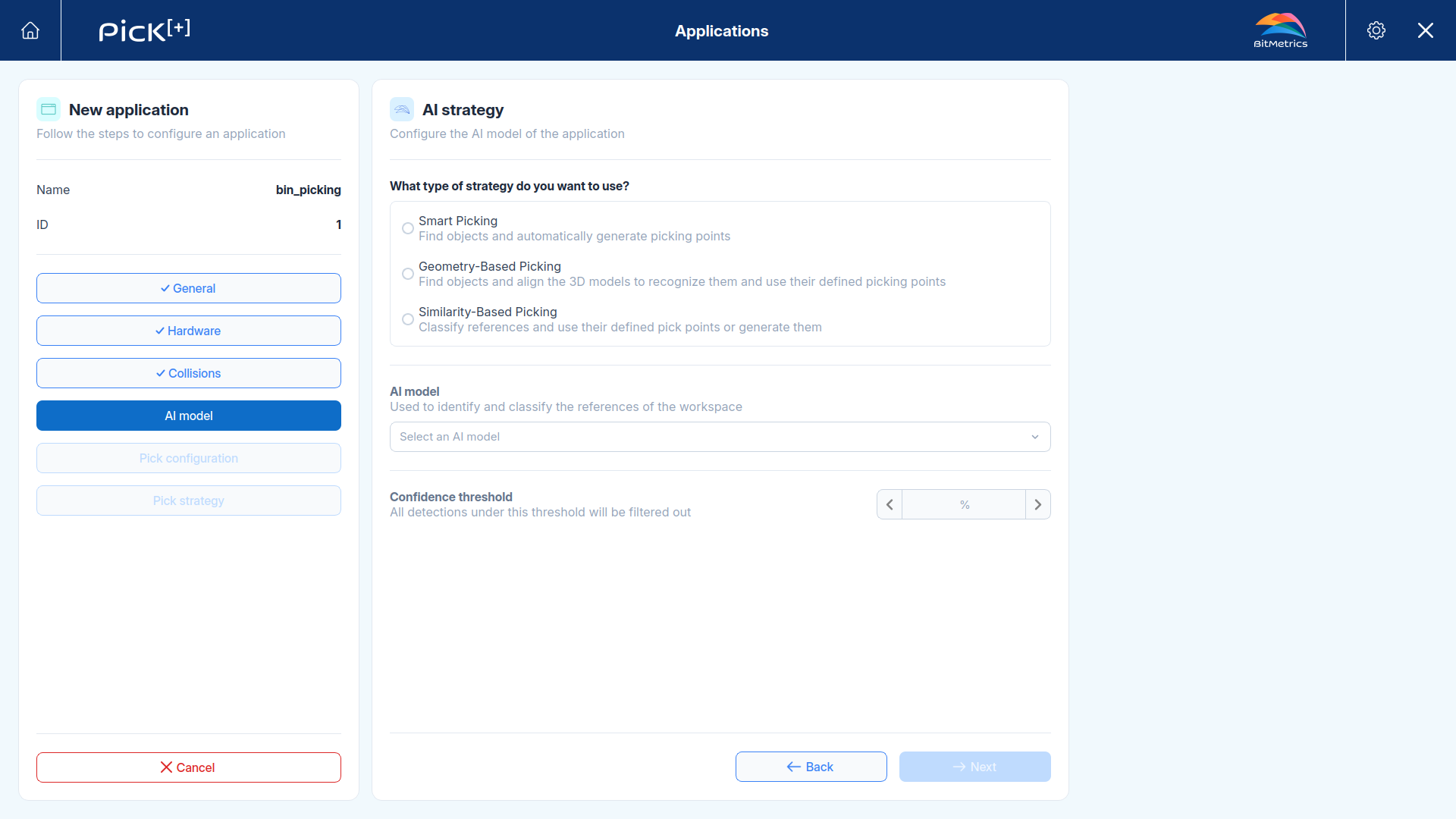
Choosing a Strategy
| Smart Picking | Geometry-Based | Similarity-Based | |
|---|---|---|---|
| What it does | Finds objects and generates picking points on them | Finds objects and aligns their 3D model to recognize them | Classifies each object against your references |
| Tells objects apart | No | Yes, by 3D model | Yes, by reference |
| Data needed beforehand | None | 3D models with pick points | References enabled, with mask and embeddings. Optionally, 3D models with pick points |
| Where pick points come from | Generated automatically | Defined on the 3D model | Generated automatically or defined on the 3D model |
| Best for | Unknown parts with no CAD available | Single-part or few-part bins where the grasp must be precise and repeatable | Several known part types that must be distinguished from each other |
How the Strategies Are Built
Each strategy is a fixed combination of two things, the AI model that finds the objects and the way the pick point on them is obtained.
| Strategy | How objects are found | Where the pick point comes from |
|---|---|---|
| Smart Picking | CoreVision, segments the objects without telling them apart | Auto-pick or Mask center |
| Geometry-Based | CoreVision, segments the objects without telling them apart | Model alignment |
| Similarity-Based | Few-shot, segments the objects and classifies them against your references | Auto-pick, Mask center or Model alignment |
Smart Picking and Geometry-Based Picking run the same AI model, so they segment the bin exactly alike. Switching from one to the other changes how the grasp is obtained, not how well the objects are found. If objects are being missed, the fix is the confidence threshold or the model variant, not the strategy. What does change is the fate of an object that matches no selected model, because Geometry-Based Picking can only pick what it manages to align.
Geometry-Based Picking does tell parts apart, but through the alignment rather than through the network. Similarity-Based Picking is the only one whose AI model classifies what it sees, and the only one that can use any of the three pick point modes. That is what makes it the most flexible, and also why it is the only one that needs references.
The second column is also what makes the next step change depending on the choice made here.
Smart Picking
Find objects and automatically generate picking points
Pick[+] segments the objects in the bin and computes a grasp on each one directly from the captured point cloud. Nothing about the part has to be registered in advance, neither CAD nor a 3D model nor a reference.
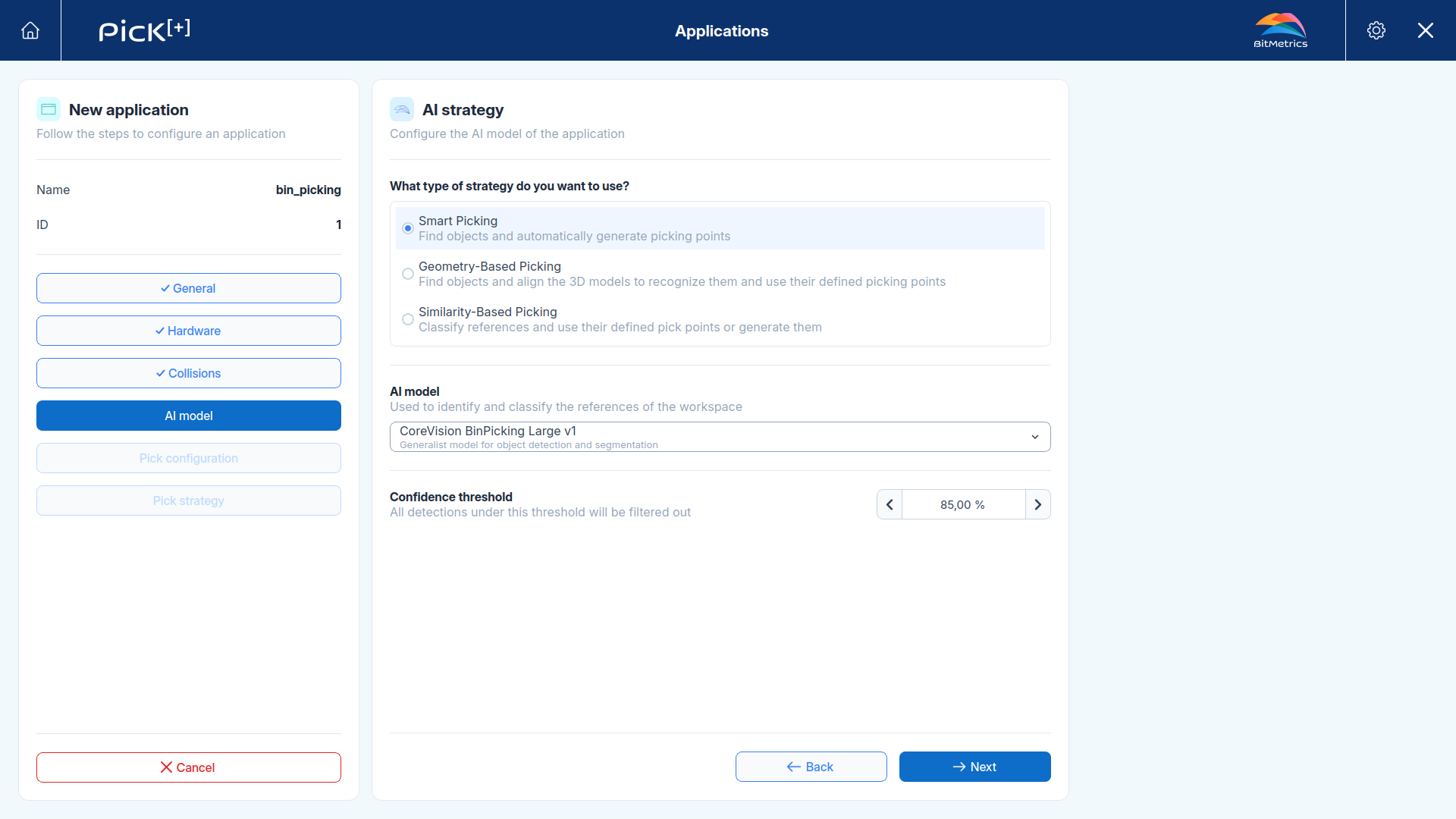
Use it when the bin contains unknown or varied parts, or when a single part type has to be emptied and the exact grasp position on the object does not matter.
The application does not report which object was picked.
Geometry-Based Picking
Find objects and align the 3D models to recognize them and use their defined picking points
Pick[+] segments the objects, then aligns each of the selected 3D models against the point cloud. A match both identifies the object and gives its exact pose in space, so the pick points defined on that model can be transformed onto the real part.
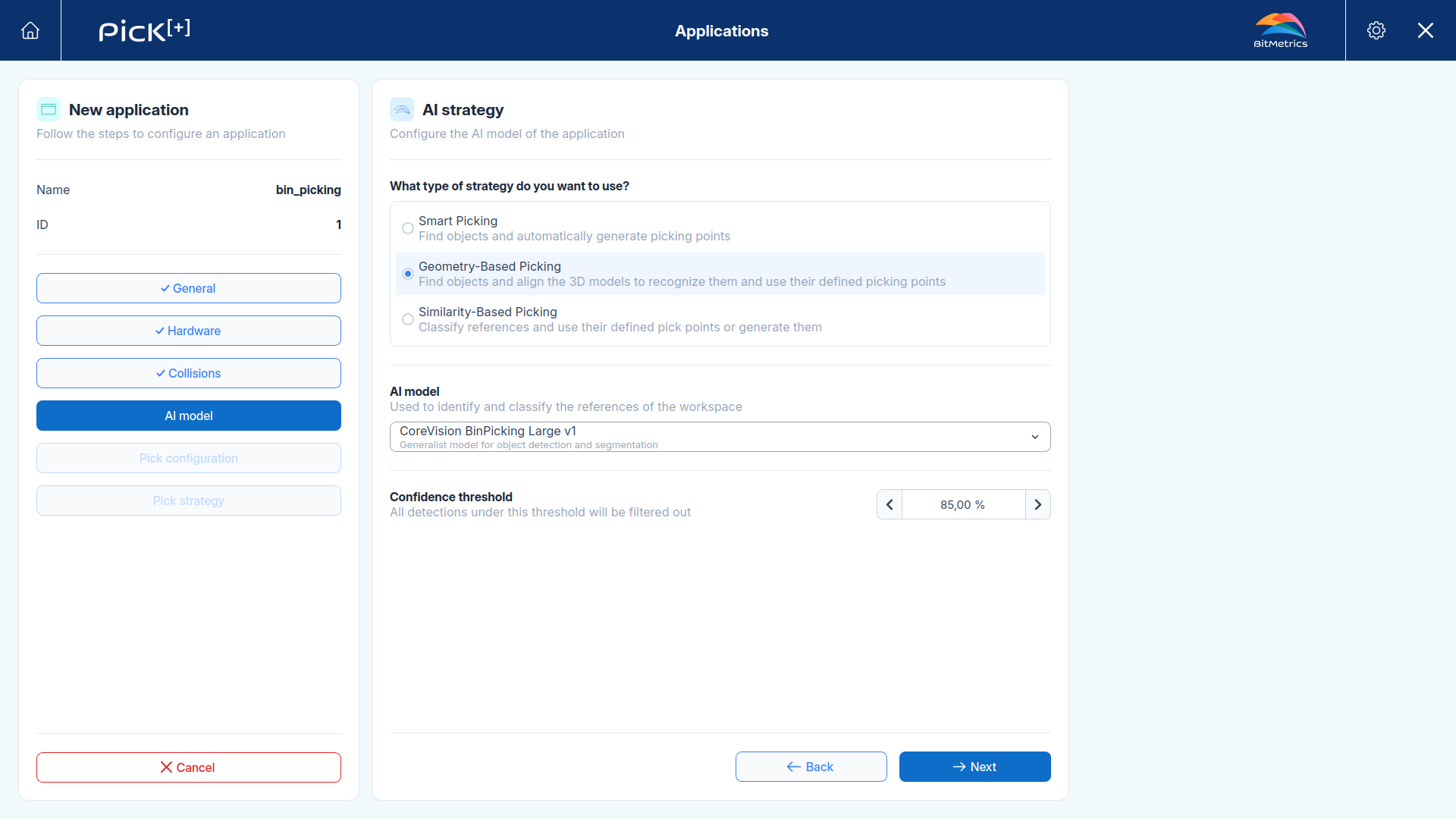
Use it when the grasp has to land on a specific feature of the part, such as a hole, a shaft or a flat face, and when the object must be picked in a known orientation for the next operation.
Alignment runs model by model, so the detection time grows with every model selected. That is why Geometry-Based Picking suits single-part or few-part bins best, and why it pays to narrow the selection down to the models the application really needs.
The models to align are chosen in the next step.
One 3D model per orientation
A 3D model only represents one physical arrangement of the object. If a part can rest on more than one face, generate a model for each and select them all. See 3D Models.
Similarity-Based Picking
Classify references and use their defined pick points or generate them
Pick[+] compares each detected object against the references registered in Data Generation and classifies it by visual similarity, using the embeddings generated for their scans. No model is trained per part, so adding a new part type only requires registering it as a reference.
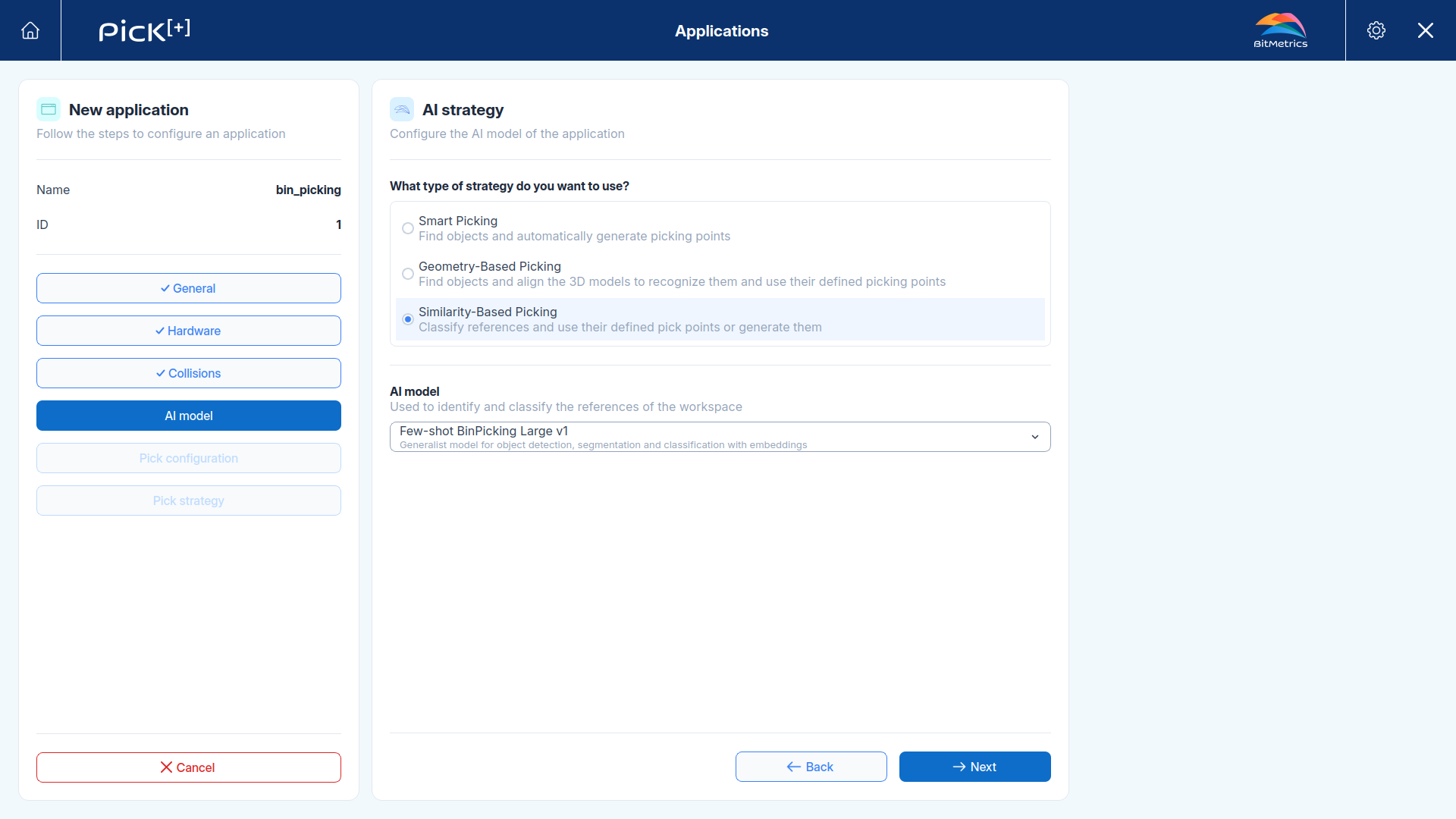
Use it when the cell handles several known part types that must be told apart, for example to sort them into different destinations.
Every pick is tagged with the reference it was identified as, so the robot program knows what it is holding before deciding what to do with it. The classification is returned in PP_CATEGORY on a robot and in OUTPUT_CATEGORY_ID on a PLC.
References must be enabled
Only references with Reference activation ON are considered, and activation requires at least one of their scans to have both mask and embeddings annotations generated. See Reference Settings.
AI Model
The AI model is the neural network that processes the captured image to find the objects in it. The dropdown only lists the models compatible with the strategy selected above.
Model Families
| Family | What it does |
|---|---|
| CoreVision | Object detection and segmentation, without classification. It finds the objects and separates them from each other, but does not say which object each one is |
| Few-shot | Object detection, segmentation and classification with embeddings. The embeddings are what makes matching a detected object against your references possible |
Model Variants
Both families offer the same three variants, each trained for a different kind of scene. Pick the one that matches what the camera actually sees:
| Variant | Best suited for |
|---|---|
| Boxes | Boxes and box-shaped containers |
| Manufacturing | Industrial metal parts |
| BinPicking | Objects piled inside a container |
The name shown in the dropdown combines the family and the variant, for example CoreVision BinPicking Large v1 or Few-shot BinPicking Large v1.
Models are managed from the AI Model button on the Home Screen (visibility of this option depends on the Pick[+] license obtained).
Confidence Threshold
Every detection produced by the model carries a confidence score. All detections under this threshold are filtered out and never become pick candidates.
- Raise it when the system is picking noise, shadows or partially visible objects it should ignore.
- Lower it when valid objects in the bin are being missed, typically the ones at the bottom, poorly lit or heavily occluded.
Click Next to continue to the picking configuration.
What's Next?
-
Picking Configuration
Define how the pick points are obtained for the strategy you selected.