Picking Configuration
The fifth step of the application wizard defines where the pick point on each detected object comes from. Its content depends entirely on the strategy selected in the AI Strategy step, which is restated at the top of the panel so you can confirm you are configuring the right one.
The strategy chosen in the previous step already narrows down which picking modes are possible. This step is where the choice among them is settled.
Picking Modes
Three picking modes exist across the strategies. Which of them are offered depends on the strategy, as shown in How the Strategies Are Built.
Auto-pick
Search for feasible picking regions within the object, compatible with the contact radius
Pick[+] inspects the surface of each detected object looking for a flat region wide enough to fit the suction cup diameter of the selected tool, so that the whole contact surface rests on the part. Several candidate poses can be found on the same object, and the one that wins is decided by the Picking Strategy.
Use it when the part has no single privileged grasp position and any sufficiently flat area is good enough. It is the most tolerant mode when objects are piled up and partially occluded, because it grabs whatever surface is exposed.
Auto-pick requires a vacuum tool
Since the grasp is sized against the suction cup diameter, Auto-pick is only available to applications that select a vacuum tool in the Collisions step.
Mask center
Select a picking pose at the center of the object, and use PCA for orientation
Pick[+] places one pick point at the center of the object's segmentation mask, and derives the approach orientation from a Principal Component Analysis of the object's point cloud, aligning the tool with the object's principal axes.
Use it for flat, symmetric or regularly shaped parts where the center is always a valid grasp. It produces exactly one candidate per object, which makes it fast and predictable, but it offers no fallback if that particular point is blocked.
Model alignment
Align the reference 3D model with the point cloud to find the configured pick point
Pick[+] fits a 3D model of the part onto the point cloud, which recovers its exact pose, and then transfers the pick points defined on that model onto the real object.
Use it when the grasp must land on a specific feature of the object, or when the part has to be picked in a known orientation for the operation that follows.
Which model gets aligned depends on the strategy. Geometry-Based Picking tries the models selected in this step, while Similarity-Based Picking aligns the model linked to the reference the object was classified as.
Check contact
Auto-pick is not the only mode that measures the surface against the suction cup. If the selected tool has Check contact enabled, the points obtained by Mask center and Model alignment are validated the same way, and the ones without a flat region wide enough for the whole suction cup to rest on are discarded.
Smart Picking
Since Smart Picking does not identify the objects, there are no predefined pick points to reuse and the pick pose has to be generated from the point cloud. The step asks which of the two automatic modes to use:
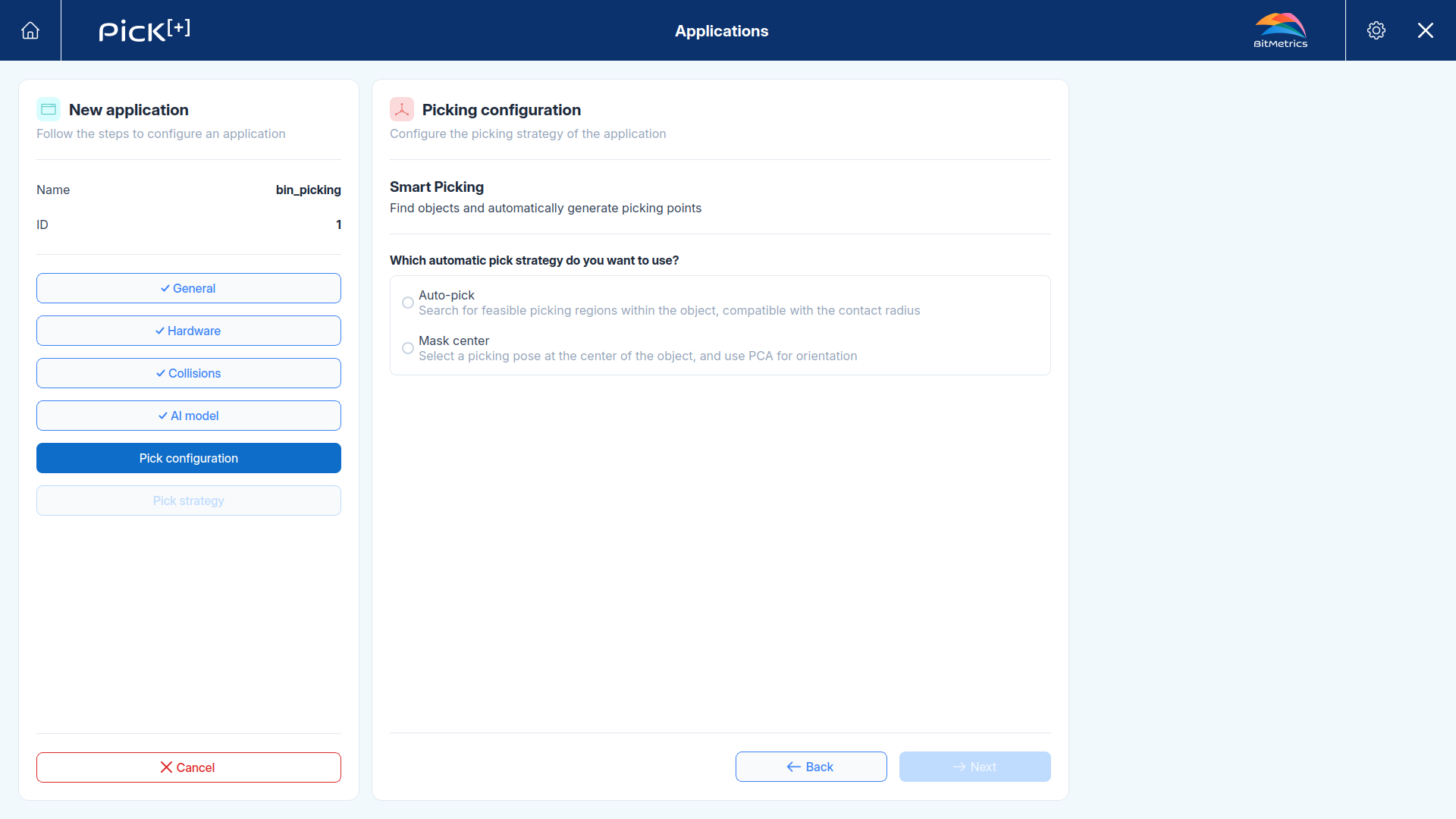
- Auto-pick: several feasible grasps per object, wherever the suction cup fits.
- Mask center: one grasp per object, at its center.
Geometry-Based Picking
Geometry-Based Picking always works by model alignment, so the mode is not configurable here. What the step asks instead is which 3D models Pick[+] should try to align against the point cloud.
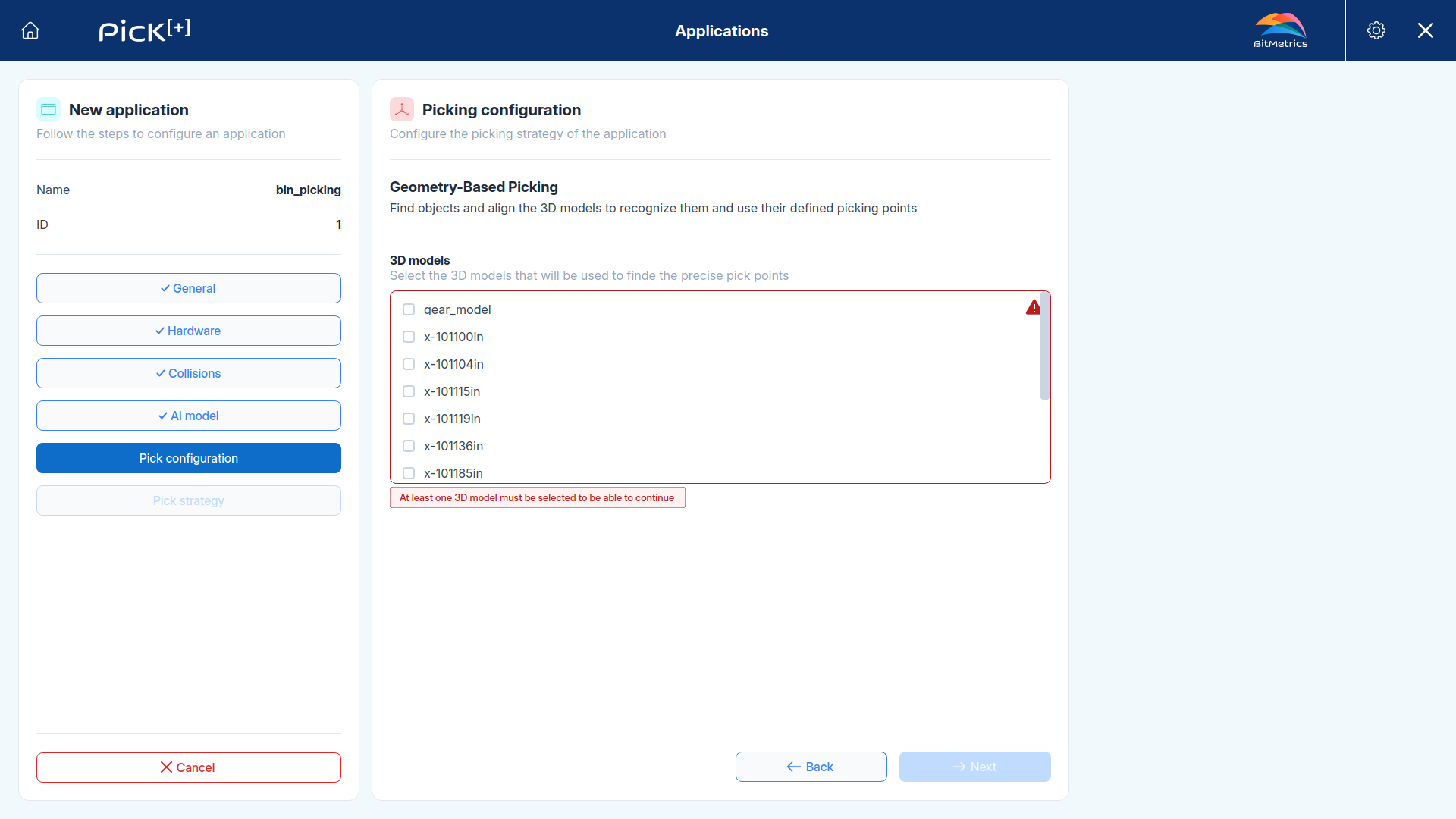
Tick every model the application has to recognize, and only those. Pick[+] aligns the selected models one by one, so each extra model adds time to the detection and opens the door to matches against parts that do not belong in this application.
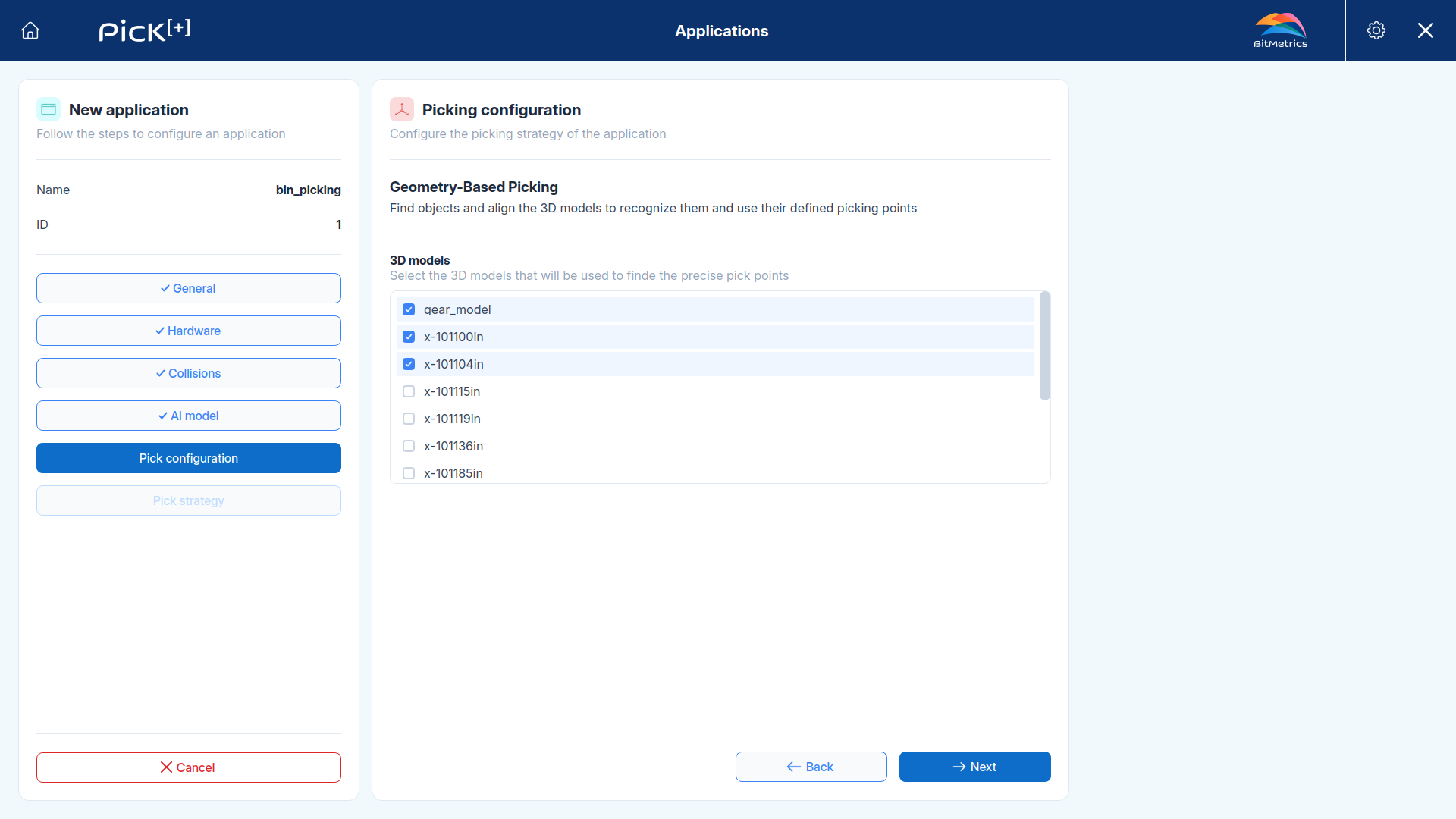
Filtering models at runtime
The models selected here are the ones the application can use. The robot program or the PLC can narrow the search further on each capture through the models_ids parameter of pick_plus_config_trigger (UR), the models_ids{*} parameter of PP_ConfigTrigger (ABB) or the TRIGGER_3D_MODEL_ID registers.
Similarity-Based Picking
Similarity-Based Picking classifies each object against a reference, so all three modes are available:
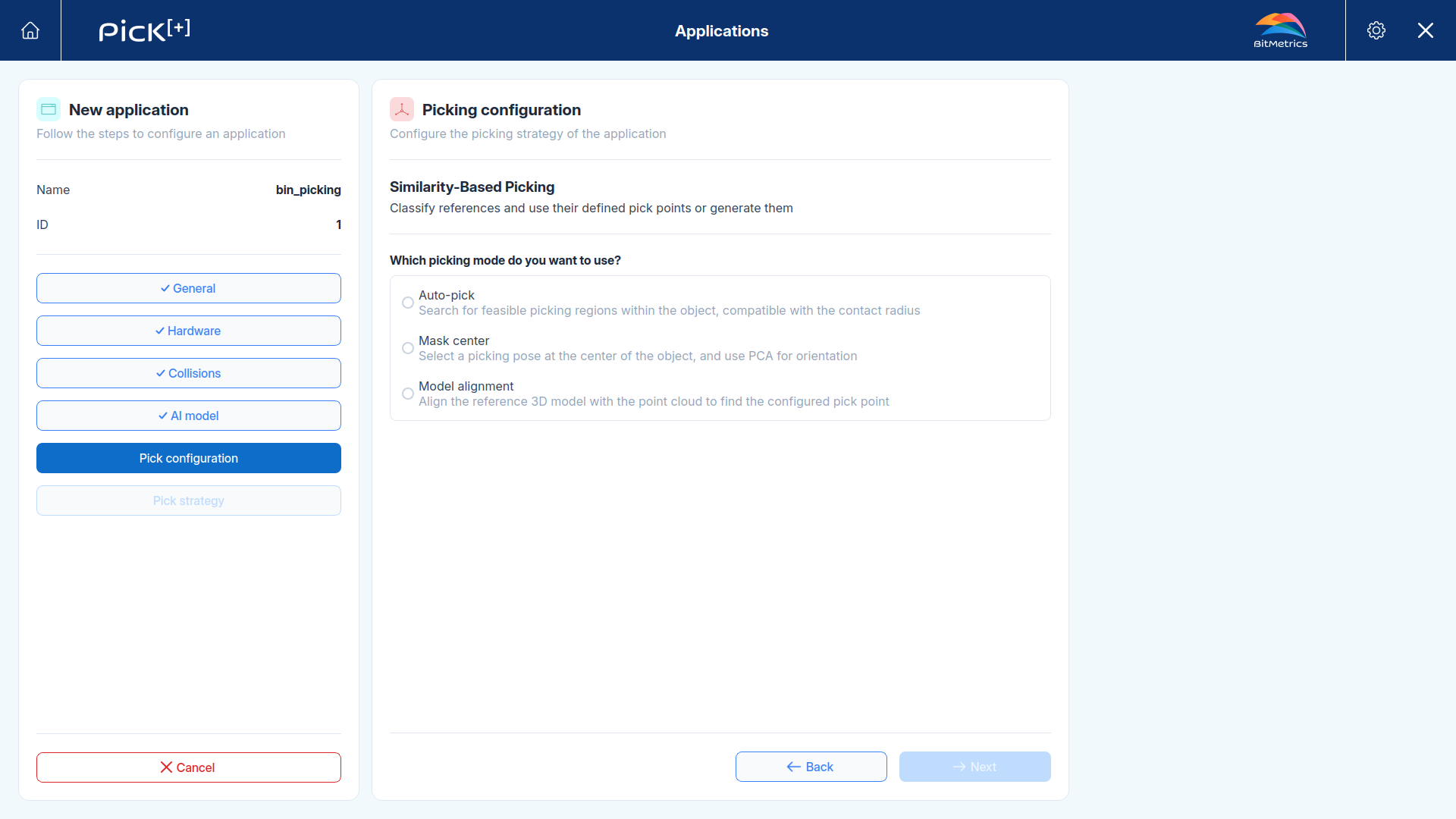
Alternative Picking Mode
Choosing Model alignment reveals a second selector:
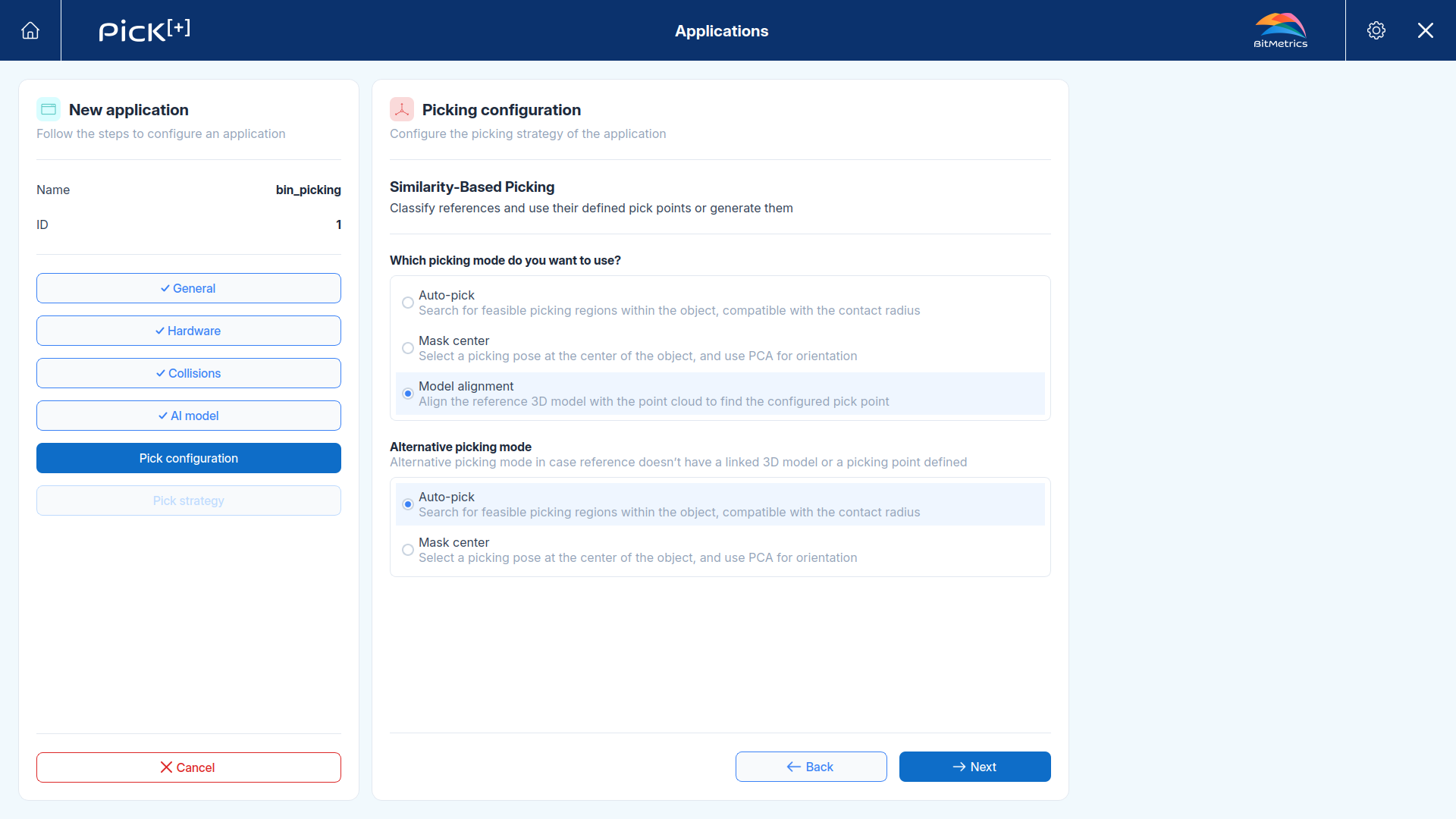
Model alignment needs the matched reference to have a linked 3D model with a pick point defined on it. References are not always complete, since a part may be registered and recognizable while its 3D model or its pick points are still missing.
The alternative picking mode is the fallback applied to those references, so the object is still picked instead of skipped:
The fallback is decided per object, not per application. References that do have a linked model with pick points still use model alignment in the same cycle.
Click Next to continue to the picking strategy.
What's Next?
-
Picking Strategy
Decide which candidate and which pick point Pick[+] sends to the robot.