Bins
A bin is the container that holds the objects you want to pick. Its main job is to delimit and filter the pick region: on every camera trigger, Pick[+] only searches for and plans picks on the objects that fall inside the selected bin. This keeps detections focused on the relevant volume and avoids picking outside the working area.
A bin can also be configured as a physical box so that its walls are considered by the collision handling system, preventing the tool from colliding with the container during the pick trajectory.
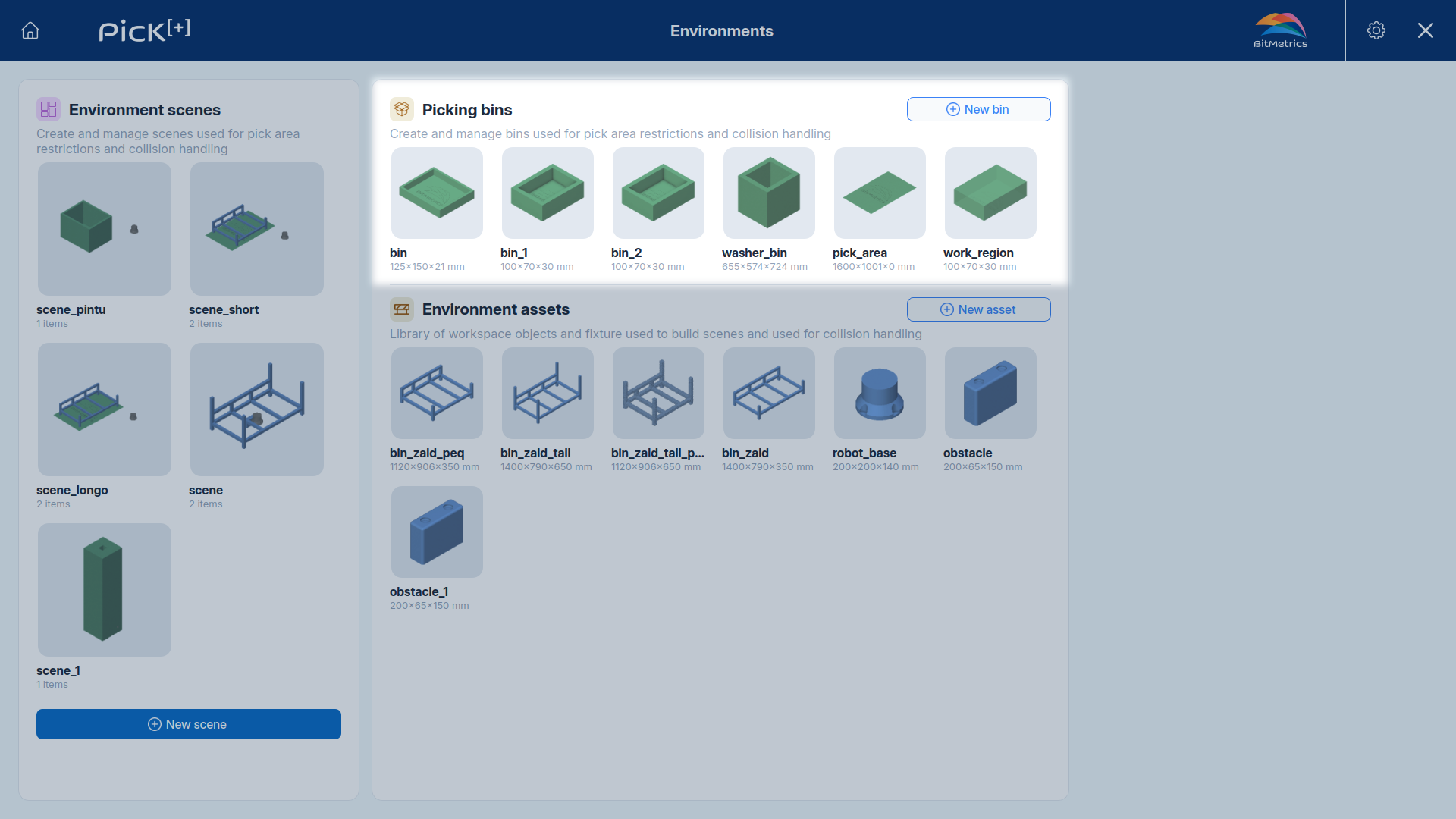
Bins live in the reusable library on the Environments screen. Once created, a bin can be added to any scene.
Creating a bin
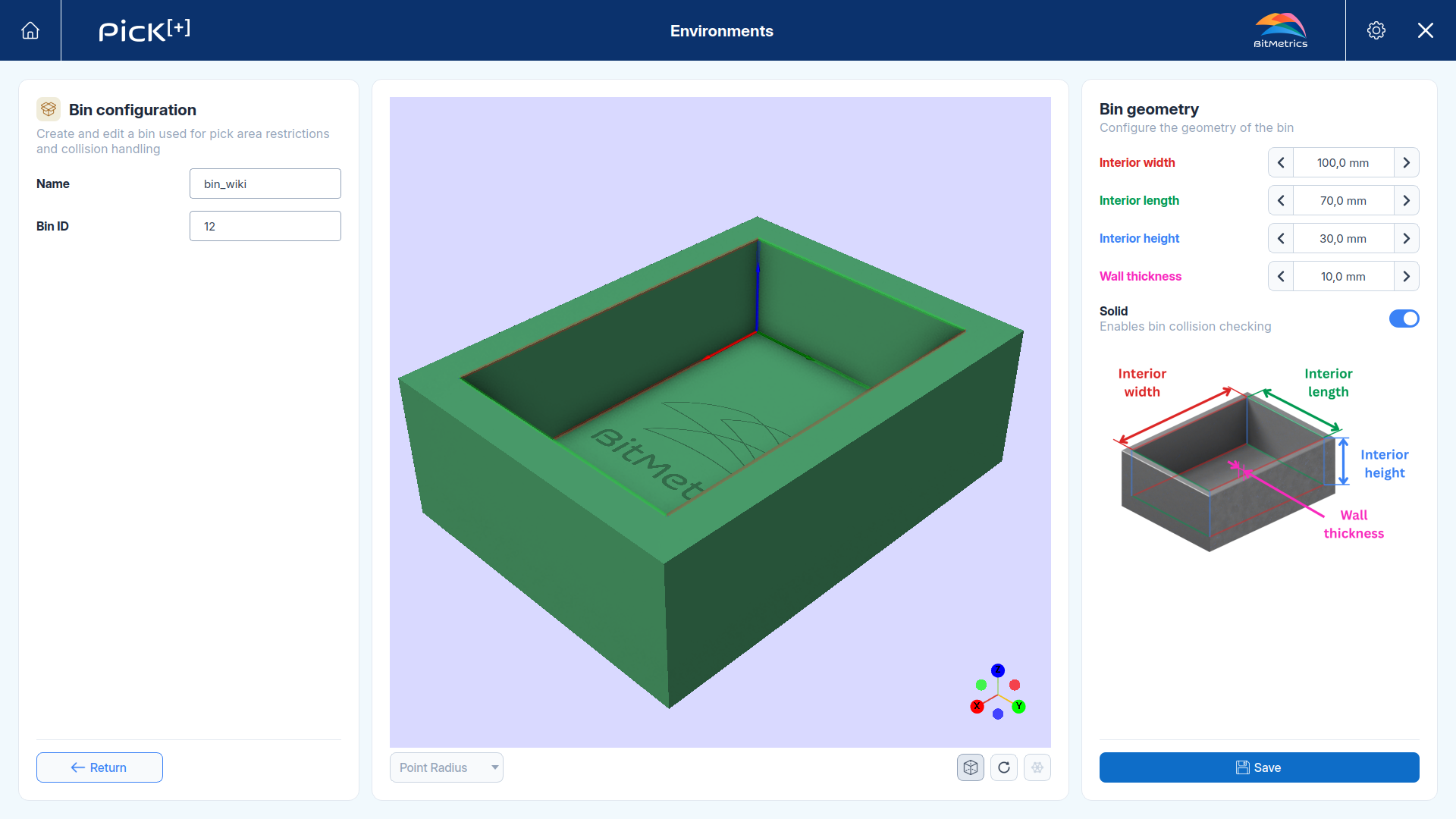
From the Environments screen, click New bin in the Picking bins panel. The bin configuration screen opens with a live 3D preview in the center and the geometry controls on the right.
Configuration
- Name: a descriptive label used to reference this bin in the robot programs.
- Bin ID: the numeric identifier used to reference this bin in the PLC programs.
See Selecting a bin in execution for details.
Geometry
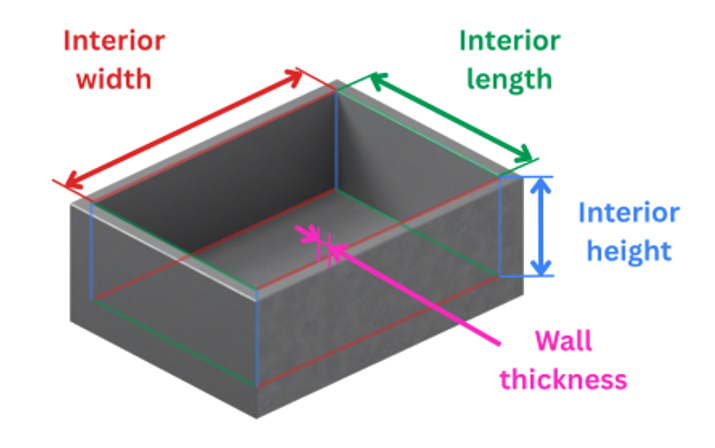
Under Bin geometry, define the box dimensions:
- Interior width, Interior length and Interior height: the inner usable volume of the container.
- Wall thickness: the thickness of the bin walls, added around the interior volume.
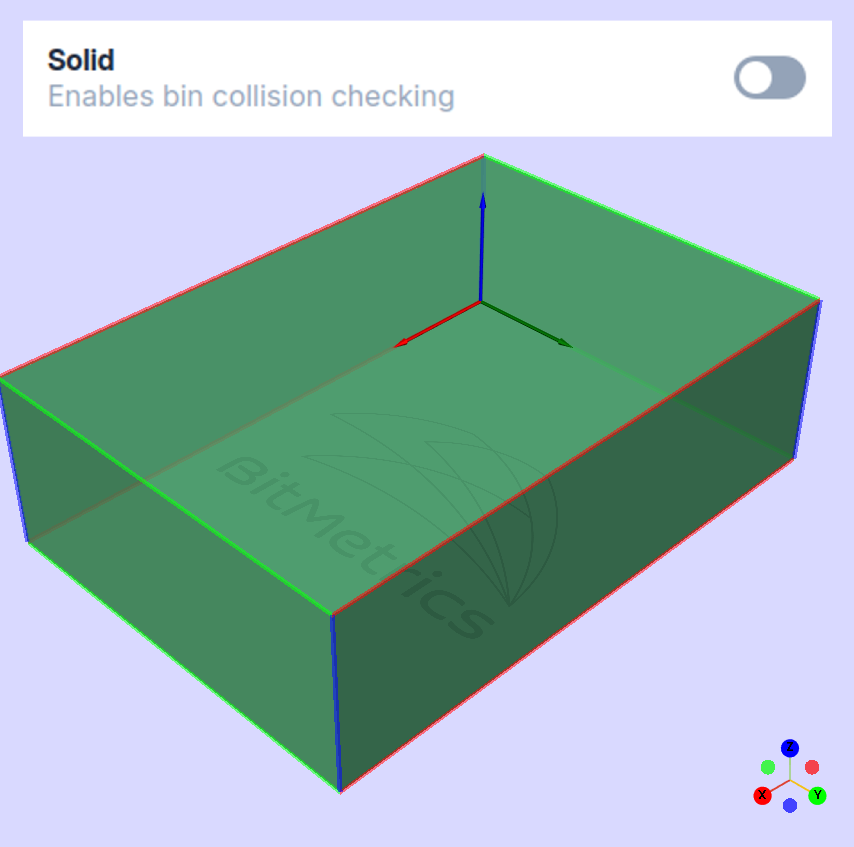
The preview updates as you edit the values, so you can confirm the shape before saving.
Solid: physical box or pick region only
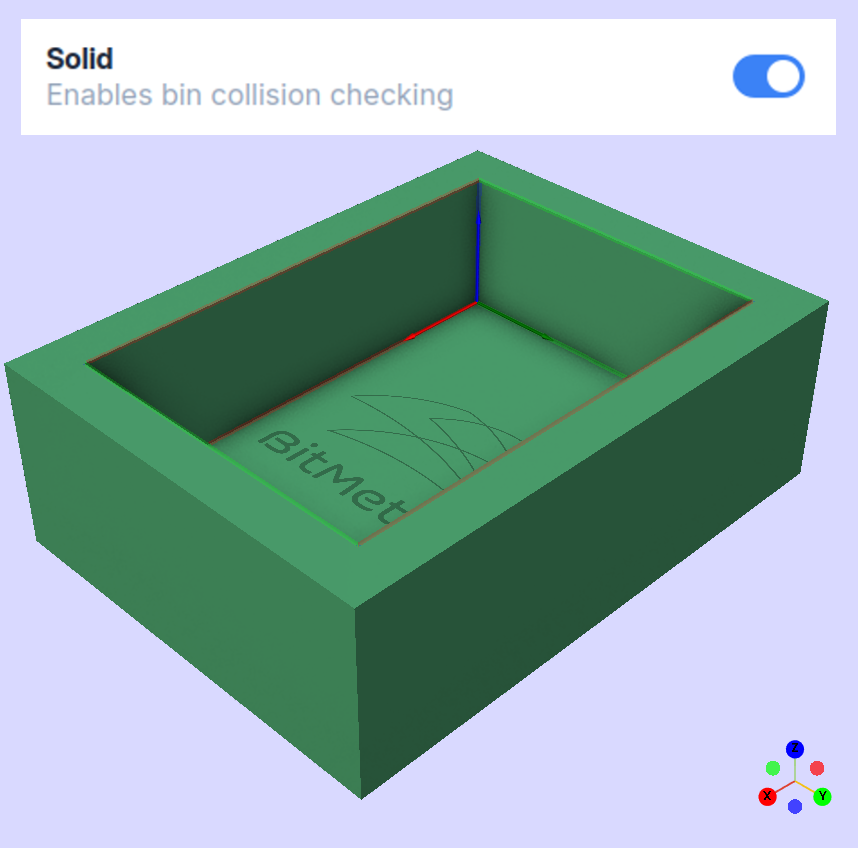
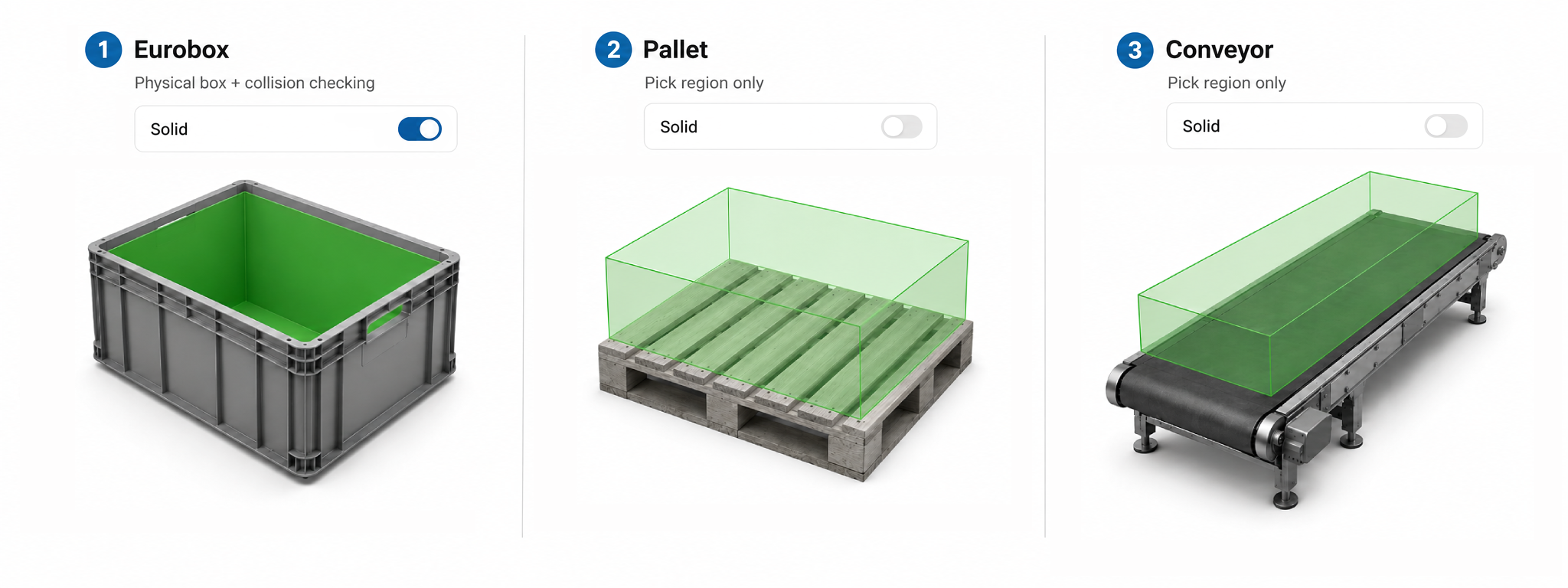
The Solid toggle decides whether the bin is only a pick region or also a physical obstacle.
- Solid enabled: the bin walls are treated as a physical box and included in collision checking. Use this when the real container can be hit by the tool.
- Solid disabled: the bin is used only as a pick region to filter detections. No walls are considered for collisions.
Which one to use
Enable Solid when the container is tall or rigid enough to be a collision risk. Leave it disabled when you only need to restrict the search area, for example a flat pick zone marked on a table.
Selecting a bin in execution
The pick region is not fixed to a single bin. A scene can hold several bins, and which of them apply can be decided on every cycle by the robot program or the PLC, not in the application configuration. This is what lets one application empty different containers during the same routine.
At trigger time
This restricts where Pick[+] looks. Objects that fall outside the selected bins are never detected, so they produce no candidates at all.
| Integration | How to select the bin |
|---|---|
| Universal Robots | The environments parameter of pick_plus_config_trigger, using the Bin Name. Set environments_subtract to False to search only the listed bins, or to True to search everything except them |
| ABB | The environments{*} parameter of PP_ConfigTrigger, using the Bin Name. Set environments_subtract to FALSE to search only the listed bins, or to TRUE to search everything except them |
| PLC | The TRIGGER_BOX_ID registers, using the Bin ID. Set TRIGGER_BOX_ID_IGNORE to 0 to search only the listed bins, or to 1 to search everything except them |
The three integrations follow the same rule: the list says which bins the flag applies to, and the flag says whether that list is the set to search or the set to skip.
Example: a scene with bin_left and bin_right. To pick only from bin_left, list it and turn the flag off:
environments = ["bin_left"]
environments_subtract = False
To pick from everything except bin_left, keep the same list and turn the flag on:
environments = ["bin_left"]
environments_subtract = True
Leaving the list empty
An empty list combined with the exclude flag (environments = [] and environments_subtract set to True, the default) excludes nothing, so all the bins of the selected scene are searched. An object outside every bin is never detected, with or without a filter.
Be careful with the opposite combination: an empty list with the flag set to False means "search only the listed bins" with nothing listed.